"My Logs" Bookmarks
When analyzing a complex failure across gigabytes of logs, you often identify a handful of key events: a user tap, a broadcast intent, a network timeout, a fatal exception, and a watchdog timeout. Keeping track of these scattered milestones across thousands of lines can be difficult.
My Logs is a dedicated bookmarking space within LogViewer that allows you to collect, isolate, and navigate critical log entries in a clean, chronological timeline.
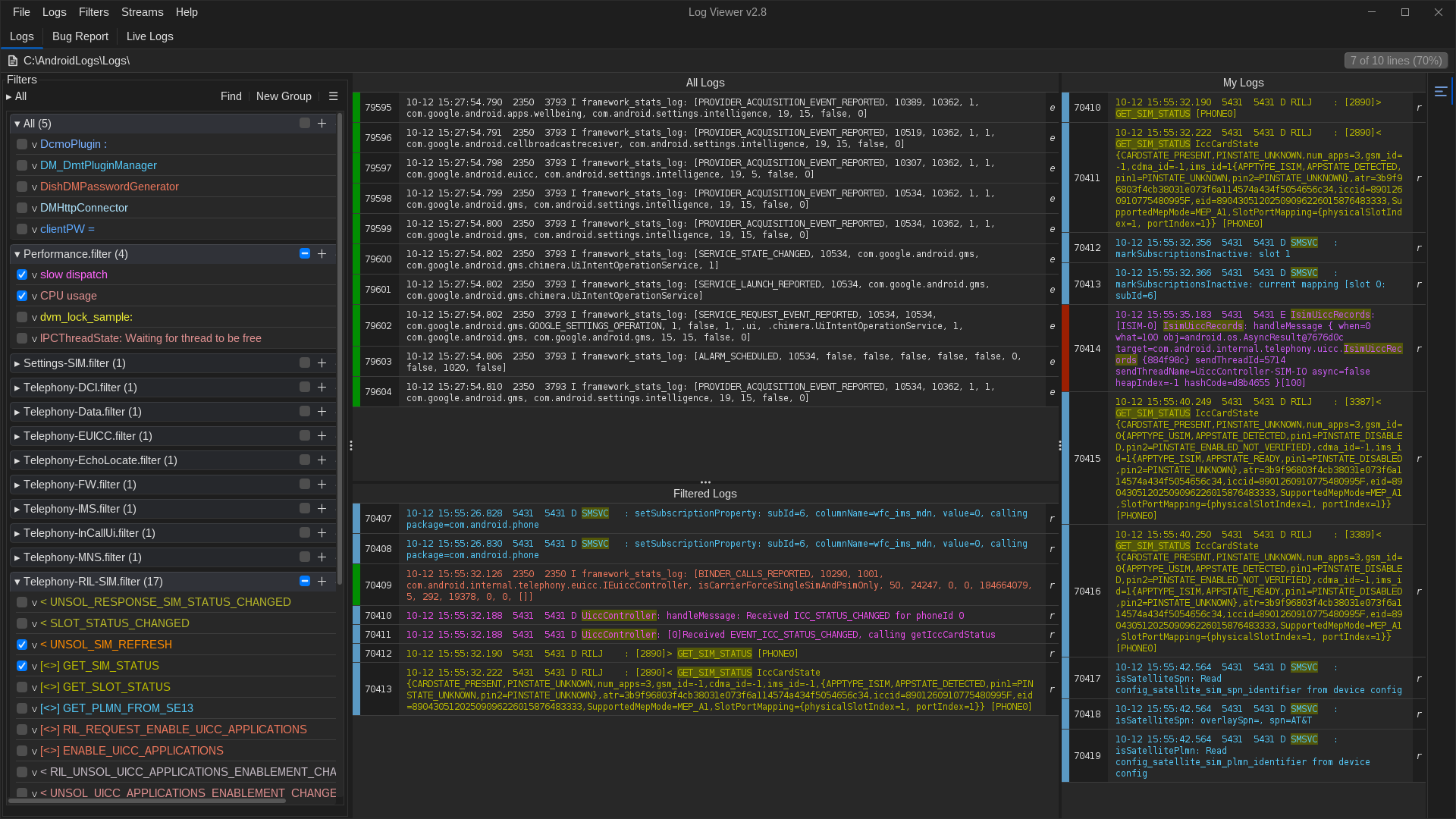
Adding Logs to "My Logs"
You can bookmark log lines from any table in LogViewer (including All Logs, Filtered Logs, and Live Logs):
- Select one or more log lines.
- Right-click and choose Add to My Logs.
- The selected lines are immediately added to your My Logs pane with a distinctive bookmark indicator.
Navigating the Bookmark Timeline
The My Logs table displays all your saved lines ordered chronologically:
- Instant Jump to Context: Clicking any line in the My Logs list immediately scrolls to and highlights that line in the main All Logs view. This allows you to verify what happened directly before and after each milestone without losing your bookmark list.
- Persistent Display: Bookmarked logs remain pinned in your My Logs list regardless of which filters you turn on or off in the Filters panel.
- Inspect Details: Press Cmd+I or Ctrl+I on any bookmarked line to view its complete multiline message and metadata.
Managing Bookmarks
- Remove Bookmark: Select the log line in the My Logs pane, right-click, and select Remove from My Logs (or press Del / Backspace).
- Clear All: Clear the entire bookmark collection when beginning a new investigation session.